

Tap the button to open the Treasure Mile Android app download.
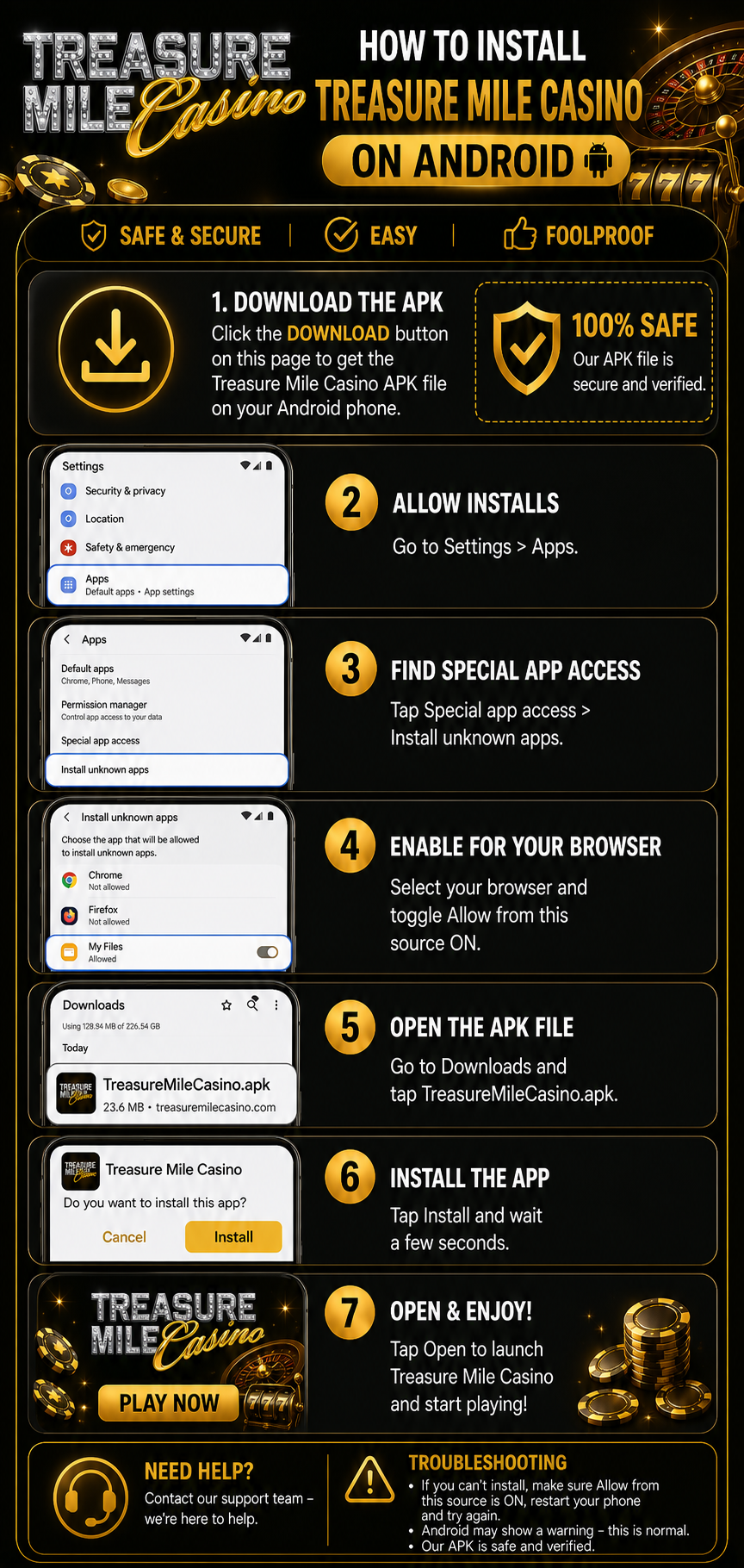
Detailed Android installation instructions
Use these steps if your Android phone asks for extra permissions before installing the Treasure Mile app.
- Download the app file. Tap the Tap here to download the app button at the top of this page.
- Confirm the download. If Chrome or your browser asks whether you want to keep the app file, choose the option to download or keep it.
- Allow installs from your browser. If Android blocks the installation, open Settings, go to Apps, then find Special app access or Install unknown apps.
- Select the app you downloaded with. Choose the browser or file app you used, such as Chrome, Firefox, Samsung Internet, Downloads, or My Files.
- Turn on permission for this source. Enable Allow from this source for the selected browser or file manager.
- Open the downloaded file. Go back to your Downloads folder or notification panel and tap the downloaded app file.
- Install and open the app. Tap Install, wait for the installation to finish, then tap Open to launch Treasure Mile.
If the app does not install
Check that the app file finished downloading, make sure your phone has enough storage space, and confirm that the correct browser or file manager has permission under Install unknown apps.
Security tip: Only use the download button on this page and do not install app files from unknown links or messages.